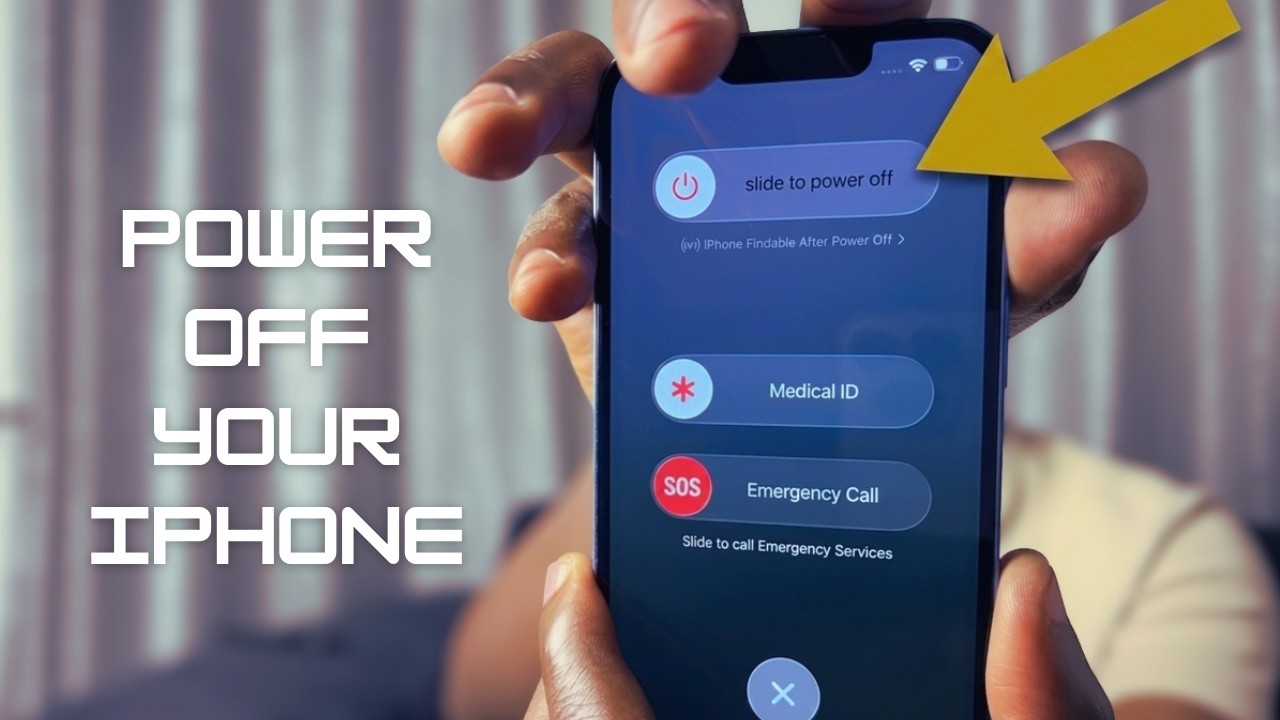

An iPhone that is completely frozen, unresponsive to taps, or stuck on the Apple logo for more than a few minutes is one of the most common iPhone problems. The good news is that a force restart fixes it in almost every case — and it takes less than ten seconds. Here is exactly what to do.
Force Restart — iPhone 8 and Newer (Including All Face ID Models)
This covers iPhone 8, iPhone X, XS, XR, 11, 12, 13, 14, 15, 16, and the iPhone 16 series. Follow these steps in quick succession — do not hold any of the first two buttons:
- Press and immediately release the Volume Up button.
- Press and immediately release the Volume Down button.
- Press and hold the Side button (right side of iPhone) until the screen goes black and the Apple logo appears.
- Release the Side button. Your iPhone is restarting.
The key is speed — the first two button presses should be quick taps, not holds. If you hold them, it triggers other functions. Only the Side button in step 3 needs to be held.
Force Restart — iPhone 7 and 7 Plus
- Press and hold the Volume Down button and the Sleep/Wake (Side) button at the same time.
- Keep holding both until the Apple logo appears on screen, then release.
Force Restart — iPhone 6s, SE (1st Gen), and Earlier
- Press and hold the Home button and the Sleep/Wake (Top) button at the same time.
- Keep holding both until the Apple logo appears, then release.
What If It's Stuck on the Apple Logo After Restarting?
If the Apple logo appears during the restart but the phone then gets stuck on it again without fully booting, your iPhone may have a software issue that a standard force restart cannot clear. Try the following:
- Wait it out — If your iPhone was updating iOS when it froze, leave it connected to power and give it up to 15 minutes. Large iOS updates can sometimes take longer than expected to apply, especially on older devices.
- Check your battery — If the battery is critically low, the phone may appear stuck. Plug it into a charger using the original cable and wait 5 minutes before attempting the force restart again.
If Force Restart Doesn't Work: Recovery Mode
If the phone is still stuck after multiple force restarts, you need to use Recovery Mode to restore iOS via a computer. This will erase your iPhone but get it working again.
- Connect your iPhone to a Mac or Windows PC using a USB cable.
- Open Finder (Mac) or iTunes (Windows).
- Perform the force restart steps above but keep holding the Side button even after the Apple logo appears — keep holding until you see the Recovery Mode screen (a cable pointing to a laptop icon).
- In Finder or iTunes, you will see a prompt to either Update or Restore. Try Update first — it reinstalls iOS without erasing your data. If that fails, use Restore.
Recovery Mode is a last resort but it reliably fixes iPhones that are completely stuck in a boot loop.
Why Does This Happen?
An iPhone gets stuck on the Apple logo or freezes for several common reasons:
- An iOS update was interrupted (power loss, low battery, or disconnected during the update)
- A recently installed app caused a system crash
- Low storage — when the internal storage is almost full, the system can fail to boot properly
- Corrupted system files from a failed backup restore
After a successful force restart, it is worth checking Settings → General → iPhone Storage and freeing up space if storage is nearly full, to reduce the chance of this happening again.
Video Guide
Watch the full step-by-step tutorial below: