Your iPhone has access to your location, microphone, camera, contacts, and browsing habits — and many apps quietly use that access even when you are not actively using them. Here is how to take back control, step by step.
Turn Off Location Tracking Per App
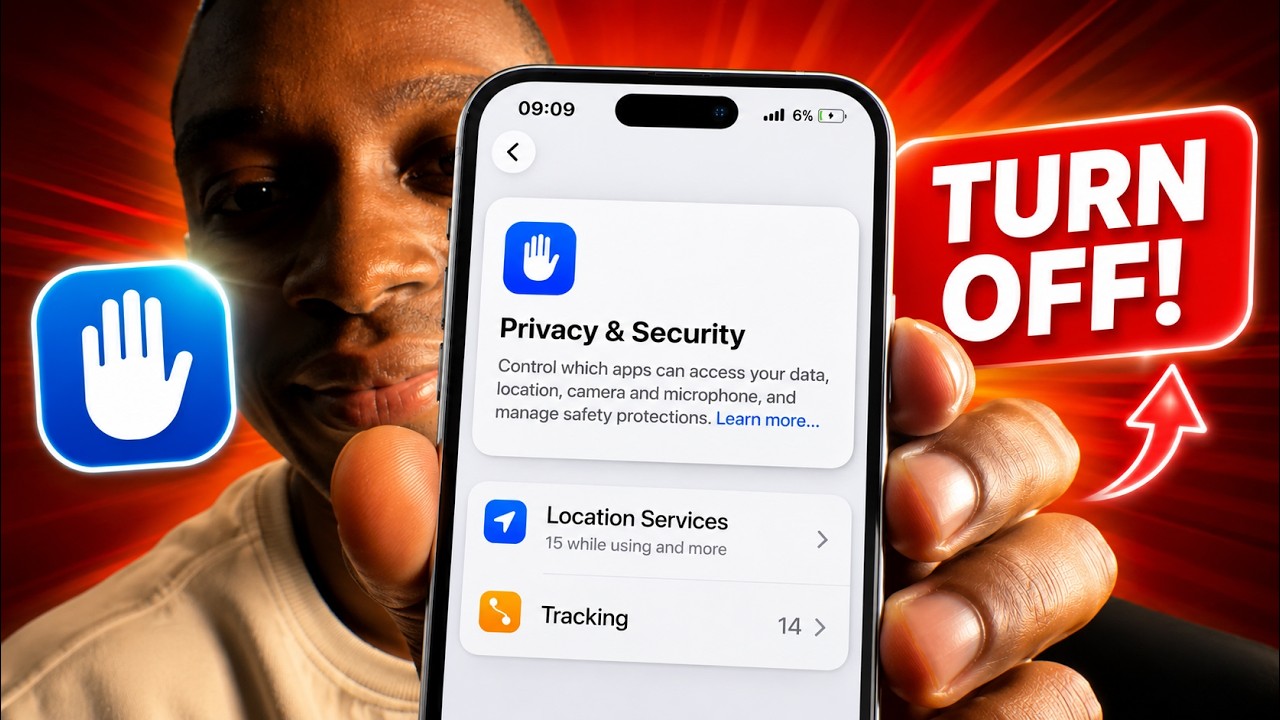
Go to Settings → Privacy & Security → Location Services. Here you will see every app that has requested your location. For each app, you can choose:
- Never — the app cannot access your location at all.
- Ask Next Time or When I Share — the app must ask each time.
- While Using the App — location only works when the app is open on screen.
- Always — the app can track your location in the background. Avoid this unless the app genuinely needs it (like a navigation or Find My app).
Review every app and switch anything set to Always down to While Using or Never. Most apps — social media, food delivery, shopping — do not need your location in the background.
Disable Precise Location
Even when you allow location access, you can limit how accurate it is. In Settings → Privacy & Security → Location Services, tap on any app and look for the Precise Location toggle. Turn it off and the app only gets a general area (neighbourhood level) rather than your exact GPS coordinates. This is ideal for apps like weather that only need your city, not your street address.
Stop Apps From Listening via the Microphone
Go to Settings → Privacy & Security → Microphone. You will see every app that has been granted microphone access. Toggle off any app that has no legitimate reason to listen — social media apps, shopping apps, games, and utilities rarely need this. Only leave microphone access on for apps like phone, voice memo, or video calling apps.
On iOS 26, a yellow dot appears in the status bar at the top of your screen whenever any app is actively using your microphone. If you see it and you are not on a call or recording, open the Control Centre to see which app triggered it.
Revoke Camera Access
Go to Settings → Privacy & Security → Camera and do the same audit. Remove camera access from any app that does not need it. A green dot in the status bar indicates your camera is actively in use — if you see it unexpectedly, check Control Centre immediately.
Turn Off App Tracking (Cross-App Data Sharing)
Go to Settings → Privacy & Security → Tracking. Toggle off Allow Apps to Request to Track. This prevents apps from asking permission to track your activity across other companies' apps and websites — the data used to build advertising profiles about you. Any apps that previously had tracking permission will be automatically denied.
Limit Ad Targeting
Go to Settings → Privacy & Security → Apple Advertising and turn off Personalised Ads. This stops Apple from using your data to target ads in the App Store, News, and Stocks apps. It does not reduce the number of ads you see, but it means they are not based on your behaviour and interests.
Stop Siri From Listening for "Hey Siri"
If you do not use the always-on voice activation, you can turn it off. Go to Settings → Siri and toggle off Listen for "Hey Siri" (or Listen for "Siri" on iOS 26). Your iPhone will no longer passively listen for the wake word. You can still activate Siri by pressing the Side button.
Review Which Apps Access Your Contacts, Photos, and Health Data
Go to Settings → Privacy & Security and work through the list: Contacts, Photos, Health, Calendars, and Reminders. For Photos, most apps only need Selected Photos access rather than your full library. Tap any app set to All Photos and switch it to Selected Photos unless you specifically granted full access intentionally.
Check App Privacy Reports
iOS has a built-in tool that records exactly when each app accessed your location, microphone, camera, and contacts. Go to Settings → Privacy & Security → App Privacy Report and turn it on. After a day or two of normal use, come back and review the report. It will show you if any app is accessing your data more often than it should.
Turn Off Significant Locations
Your iPhone quietly builds a list of places you visit regularly and how often you go there — this is used for Maps suggestions and lock screen information. To clear and disable it, go to Settings → Privacy & Security → Location Services → System Services → Significant Locations. Toggle it off and tap Clear History to wipe what has already been recorded.
Video Guide
Watch the full step-by-step tutorial below: