

iOS has a powerful built-in content filter that blocks adult websites, explicit apps, and mature content directly through Screen Time. You don't need a third-party app or parental control software — everything you need is already on the iPhone. Here's how to set it up in a few minutes.
Step 1: Open Screen Time
- Go to Settings on your iPhone.
- Tap Screen Time.
- If Screen Time is not already enabled, tap Turn On Screen Time and follow the prompts.
- If this is for a child's device, select This is My Child's iPhone to set a Screen Time passcode that only you know.
Step 2: Enable Content & Privacy Restrictions
- Inside Screen Time, tap Content & Privacy Restrictions.
- Toggle the switch at the top to turn it On.
- If prompted, enter your Screen Time passcode.
Step 3: Block Adult Websites in Safari
- Tap Content Restrictions.
- Tap Web Content.
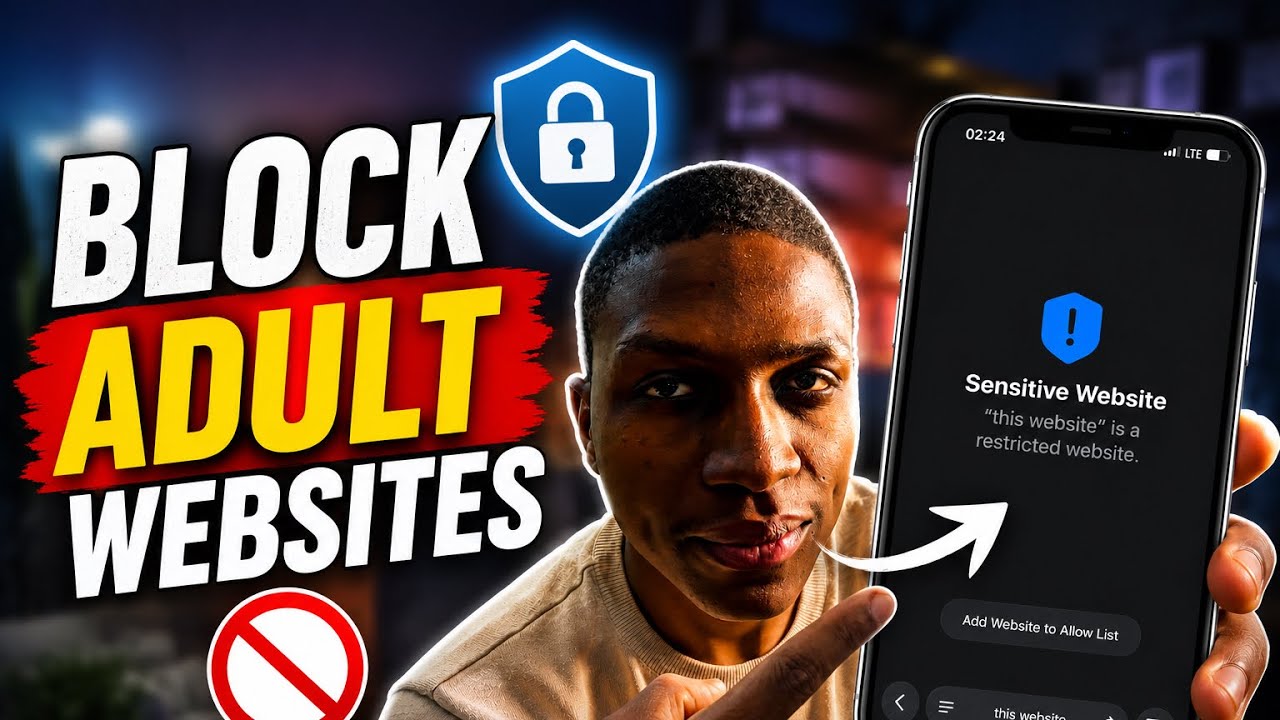
- Select Limit Adult Websites — this enables Apple's built-in adult content filter across Safari and many other apps.
iOS will now automatically block thousands of adult and explicit sites. If a site is incorrectly blocked or allowed, you can manage it below.
Step 4: Add Specific Websites to Block or Allow
Still on the Web Content screen:
- Under Never Allow, tap Add Website and type in any specific URL you want permanently blocked.
- Under Always Allow, add safe sites you want to guarantee always work (useful for educational sites).
For the strictest control, choose Allowed Websites Only — this blocks everything except sites you explicitly approve.
Step 5: Block Explicit Apps and Content
Still in Content Restrictions, you can also restrict:
- Apps → Set an age rating limit (e.g., 12+, 9+) to hide apps with mature content from the App Store and Home Screen.
- Music, Podcasts & News → Toggle off Explicit to block explicit music and podcast content.
- Movies / TV Shows → Set a maximum age rating for purchased or streaming content.
- Siri → Turn off Explicit Language to prevent Siri from returning mature results.
Step 6: Set a Screen Time Passcode (Important)
Without a passcode, these restrictions can be turned off easily. To lock them:
- Go back to the main Screen Time screen.
- Tap Change Screen Time Passcode.
- Set a 4-digit passcode that is different from the device unlock PIN.
- Store this passcode somewhere safe — if forgotten, you'll need to reset Screen Time via Apple ID recovery.
Step 7: Use Family Sharing for Remote Control (Optional)
If you're managing a child's iPhone from your own device:
- Set up Family Sharing in Settings → Your Name → Family Sharing.
- Add your child's Apple ID to the family group.
- From your iPhone, go to Settings → Screen Time → [Child's Name] to manage their restrictions remotely.
Quick Summary
- ✅ Settings → Screen Time → Content & Privacy Restrictions → turn on.
- ✅ Content Restrictions → Web Content → Limit Adult Websites.
- ✅ Add specific sites to the Never Allow list for extra blocking.
- ✅ Restrict explicit music, apps, and movies under Content Restrictions.
- ✅ Set a Screen Time passcode so restrictions can't be bypassed.
- ✅ Use Family Sharing to manage a child's iPhone remotely from your device.
Apple's Screen Time content filter is highly effective and covers Safari, the App Store, and built-in media apps — all without any third-party software or monthly fees.