iPhones have a built-in QR code scanner — no app needed. Whether you need to open a website, join a Wi-Fi network, or access a menu, your iPhone Camera handles it natively in seconds. Here's exactly how to use it.
Method 1: Use the iPhone Camera App (Easiest)
This works on iPhone 7 and later running iOS 11 or newer — which covers virtually every iPhone in use today.
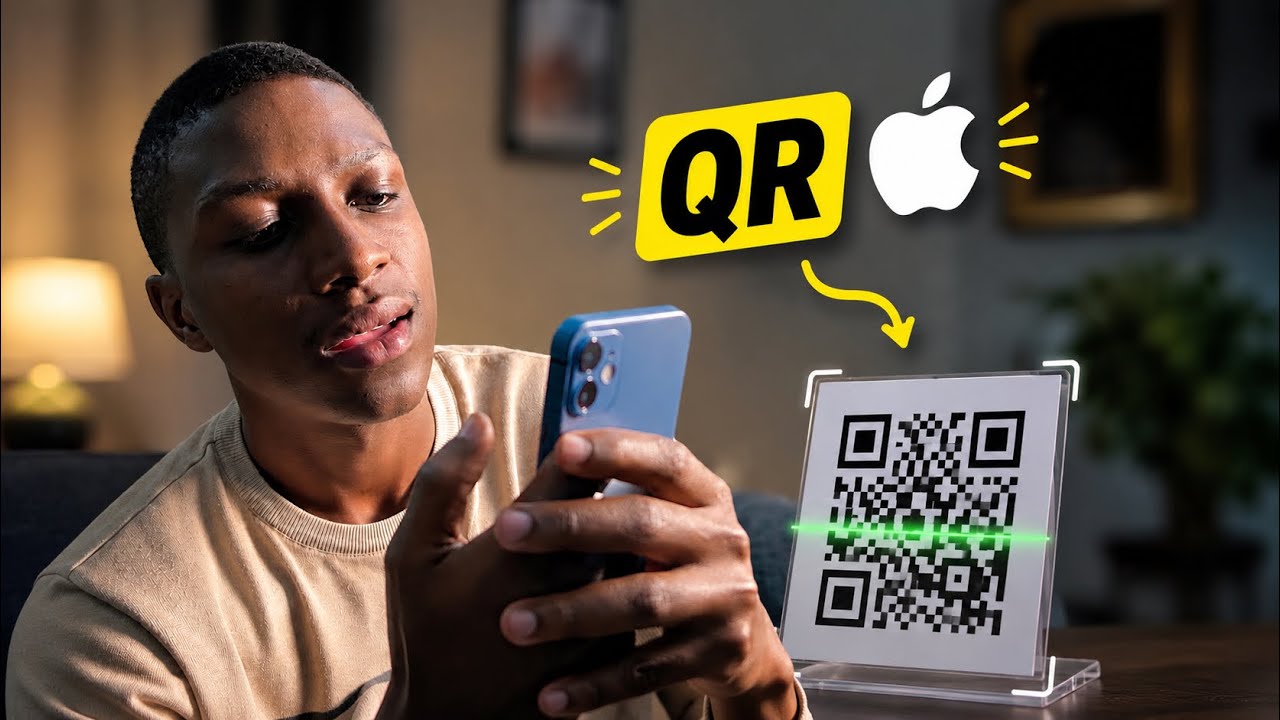
- Open the Camera app on your iPhone.
- Point the camera at the QR code — keep it steady for a moment.
- A yellow banner notification will appear at the top of the screen with the linked content.
- Tap the notification to open the link, join the Wi-Fi, or perform the action.
Tip: You do not need to take a photo. Just holding the camera over the QR code is enough to trigger the scan.
Method 2: Scan from Control Center
If your camera is busy or you want a dedicated scanner, you can add a QR code scanner shortcut to Control Center.
- Go to Settings → Control Center.
- Scroll down and tap the + next to Code Scanner.
- Swipe down from the top-right corner of your screen to open Control Center.
- Tap the Code Scanner icon (looks like a QR frame).
- Point at the QR code and it scans automatically.
Method 3: Scan a QR Code From a Photo
Already have a screenshot or saved image of a QR code? iOS can scan it directly.
- Open the Photos app and find the image with the QR code.
- Tap the image to open it full screen.
- Look for the Live Text / action button in the bottom-right corner — tap it.
- On newer iOS versions, the QR code is detected automatically and a tap prompt appears.
Alternatively, open the image in Safari using the share sheet, and the browser will recognize and link the QR code.
Method 4: Use Siri to Open the QR Scanner
Hands-free option — say "Hey Siri, open Code Scanner" and Siri launches the built-in scanner directly.
Why You Don't Need a Third-Party App
- The native Camera scanner is faster than most QR apps.
- It does not collect your data or show ads.
- It handles all standard QR code types: URLs, Wi-Fi credentials, contacts, app links, and more.
- No installation, no permissions — it's always available.
Troubleshooting: Camera Not Scanning the QR Code?
- Make sure Scan QR Codes is enabled: go to Settings → Camera and toggle Scan QR Codes on.
- Ensure you have good lighting — low light reduces camera accuracy.
- Hold the phone closer or further from the code until it locks on.
- Make sure the QR code is not damaged or partially obscured.
- Restart the Camera app if the yellow banner never appears.
Quick Summary
- ✅ Open Camera → point at QR code → tap the notification banner.
- ✅ Add Code Scanner to Control Center for a one-tap shortcut.
- ✅ Scan QR codes from saved photos in the Photos app.
- ✅ Enable QR scanning in Settings → Camera if it's not working.
- ✅ No third-party app needed on iOS 11 and later.
Your iPhone's built-in QR scanner is fast, private, and works everywhere. Skip the App Store and use what's already on your device.