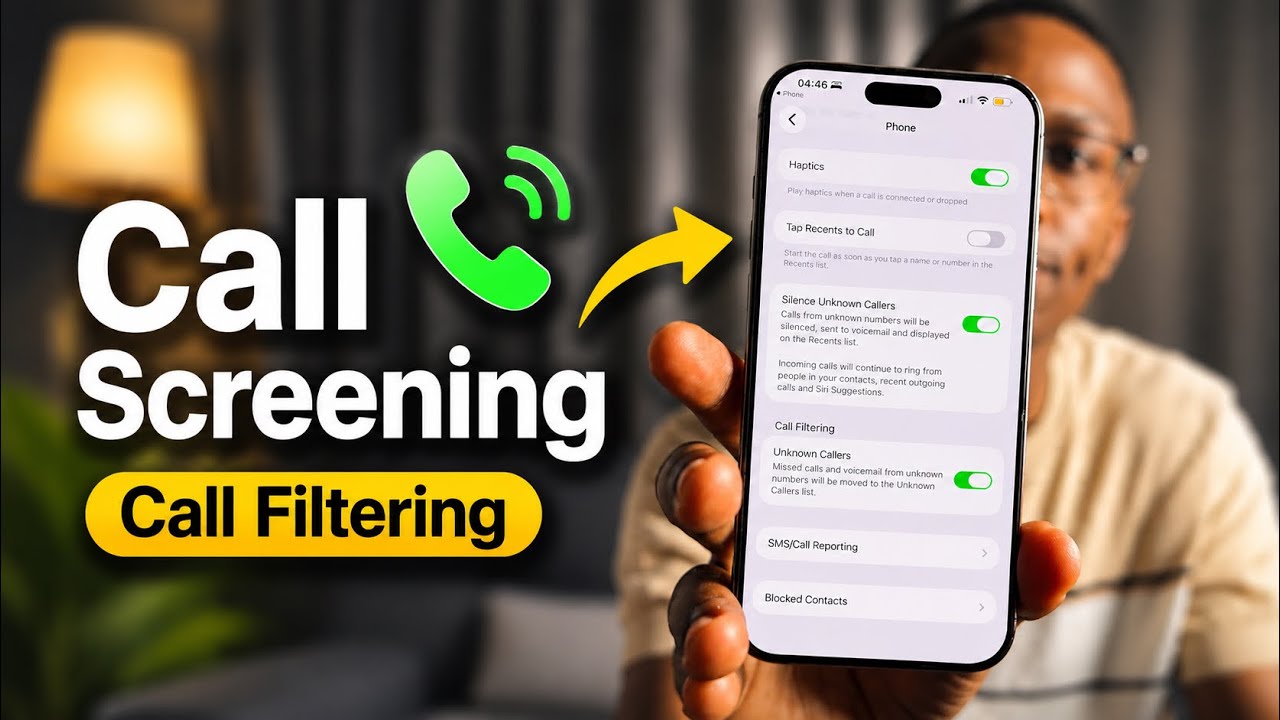
iOS 26 finally brought Call Screening to iPhone — a feature that lets your phone answer an incoming call on your behalf, ask the caller to state their name and reason for calling, and give you a live transcript so you can decide whether to pick up. Here is how to set it up and use it.
What Is Call Screening on iPhone?
When an unknown or spam-flagged number calls you, a Screen Call button appears on the incoming call screen alongside the usual Accept and Decline options. Tapping it lets your iPhone handle the call while you listen and read along. The caller hears an automated message asking them to say who they are and why they are calling. You see everything they say as a live transcript in real time. You can then choose to answer, hang up, or mark the number as spam — all without ever speaking.
How to Enable Call Screening
- Open Settings on your iPhone running iOS 26.
- Scroll down and tap Apps, then tap Phone.
- Tap Call Screening.
- Toggle on Screen Unknown Callers. You can also choose to automatically screen calls flagged as Spam Likely by your carrier.
Once enabled, the Screen Call button will appear whenever an unknown or suspected spam number rings you.
How to Screen a Call When It Comes In
- When an incoming call arrives from an unknown number, you will see three options: Accept, Decline, and Screen Call.
- Tap Screen Call.
- Your iPhone plays an automated message to the caller: "The person you are calling is using a call screening service. Please say your name and the reason for your call."
- A live transcript appears on your screen as the caller speaks.
- Based on what you read, choose one of the on-screen options:
- Accept — connect to the caller and speak normally.
- Decline — hang up. The caller is disconnected.
- Report as Spam — hang up and flag the number.
- Send to Voicemail — let the caller leave a message instead.
Setting Up Automatic Call Screening
If you want your iPhone to screen certain calls automatically without you needing to tap Screen Call each time, go back to Settings → Apps → Phone → Call Screening and look at the Automatic Screening options. You can set the phone to automatically screen:
- All unknown callers (numbers not in your contacts)
- Only numbers flagged as Spam Likely by your carrier
- Numbers that are not in your contacts, favourites, or recent calls
For automatic screening, the transcript is saved so you can review it after the call, even if you missed the live view.
Viewing Call Screening Transcripts Later
Every screened call saves a transcript. To find them, open the Phone app and tap Recents. Tap the info button (i) next to a screened call and scroll down to see the full transcript of what the caller said. This is useful if you automatically screened a call while busy and want to check whether it was legitimate.
How to Turn Off Call Screening
Go to Settings → Apps → Phone → Call Screening and toggle off Screen Unknown Callers. The Screen Call button will no longer appear on incoming calls and automatic screening will be disabled.
Troubleshooting: Screen Call Button Not Appearing
- Make sure you are on iOS 26 — Call Screening is not available on iOS 18 or earlier. Go to Settings → General → Software Update to check your version.
- Check the setting is turned on — Settings → Apps → Phone → Call Screening → Screen Unknown Callers must be toggled on.
- It only appears for unknown numbers — if the caller is already in your contacts, you will only see Accept and Decline, not Screen Call. This is by design.
- Carrier support — some carrier or network configurations can affect how call screening interacts with incoming calls. If you see issues, try toggling the feature off and back on.
Video Guide
Watch the full step-by-step tutorial below: