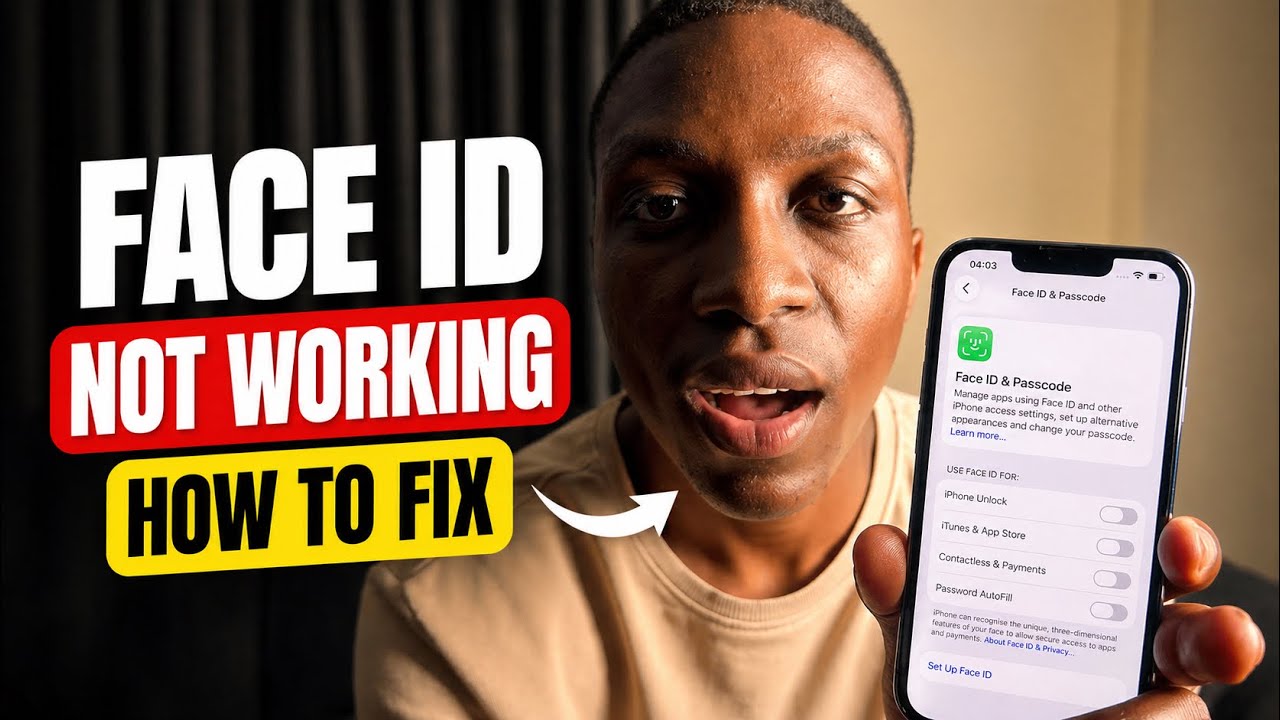
If Face ID has stopped working, is not recognizing your face, or shows a "Face ID Not Available" error, do not panic. Most Face ID issues are caused by software glitches or setup problems you can fix yourself in minutes.
1. Check Distance and Positioning
Hold your iPhone 10–20 inches (25–50 cm) from your face and look directly at the screen. Face ID requires a clear, straight-on view — avoid extreme angles. Ensure you are using Face ID in portrait orientation unless your device supports landscape (iPad only).
2. Clean the TrueDepth Camera Sensors
The TrueDepth sensors sit in the notch or Dynamic Island at the top of your screen. Oils, fingerprints, and dust can block them. Use a soft, lint-free cloth to gently wipe the top of your screen before trying again.
3. Remove Screen Protectors or Cases
Thick or poorly cut screen protectors can obstruct the TrueDepth sensors. Remove your screen protector temporarily to test if Face ID works. If it does, replace it with a Face ID-compatible protector that has a precise sensor cutout.
4. Force Restart Your iPhone
A force restart clears temporary software glitches. Press and quickly release Volume Up, press and quickly release Volume Down, then press and hold the Side button until the Apple logo appears. Let go and wait for it to restart, then try Face ID again.
5. Check Face ID Settings
Go to Settings > Face ID & Passcode and enter your passcode. Make sure the toggles for iPhone Unlock and any other features you need are switched on. If they are off, Face ID will not work for those actions even if it is set up correctly.
6. Set Up an Alternative Appearance
If you wear glasses, have changed your appearance, or often use Face ID in poor lighting, add an alternative look. In Settings > Face ID & Passcode, tap Set Up an Alternative Appearance and follow the steps. This gives Face ID a second facial profile to match against.
7. Reset Face ID and Re-enroll
If none of the above works, go to Settings > Face ID & Passcode > Reset Face ID. Once cleared, tap Set Up Face ID and complete the two-scan enrollment process fresh. A clean re-enrollment fixes the majority of persistent Face ID failures.
When It Is a Hardware Problem
If Face ID still shows "Face ID Not Available" after a reset, or if you see a persistent warning that Face ID has been disabled, there may be a hardware fault with the TrueDepth camera system. In that case, contact Apple Support or visit an Apple Store for a repair assessment.
Video Guide
Watch the full step-by-step tutorial below: