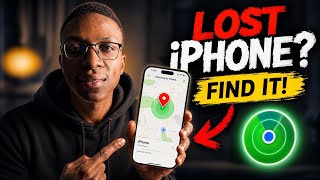
Can't find your iPhone? If you're wearing an Apple Watch paired to it, you don't need to tear apart the couch cushions or ask someone to call you. Apple built a Ping iPhone feature directly into watchOS that makes your phone play a loud sound — even when it's on silent or Do Not Disturb. Here's exactly how to use it.
What Does Ping iPhone Do?
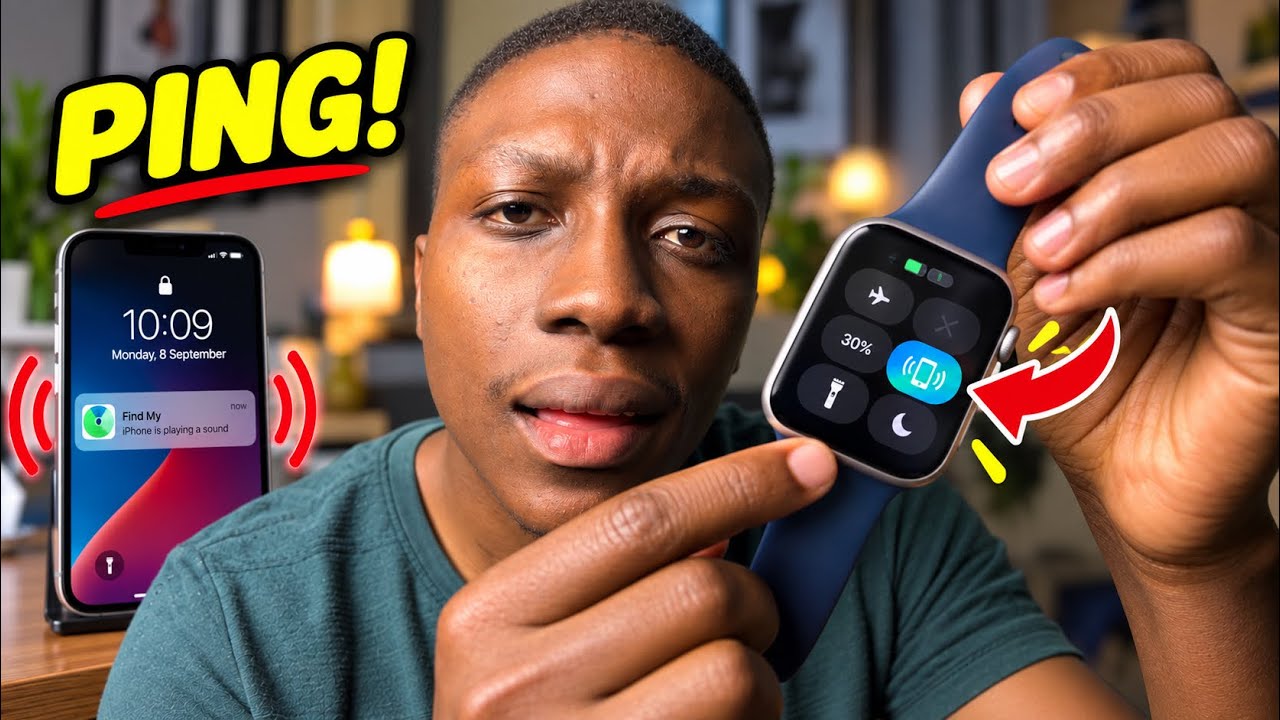
Ping iPhone sends a signal from your Apple Watch to your iPhone that triggers a loud, repeating alert sound. Your iPhone also flashes its screen and, on supported models, the camera flash may blink to help you spot it in a dark room. The sound plays regardless of whether your iPhone is set to silent mode — which is exactly why this feature is so useful when you've misplaced your phone at home or in the office.
Method 1: Ping iPhone from Control Center (Fastest)
This is the quickest way to find your iPhone when your Watch is already on your wrist.
- Wake your Apple Watch by raising your wrist or tapping the screen.
- Swipe up from the bottom of the watch face to open Control Center.
- Tap the phone icon with sound waves — that's the Ping iPhone button.
- Your iPhone will immediately start playing a loud pinging sound. Follow the sound to locate it.
Tip: On Apple Watch Series 9, Ultra 2, and newer models, you can also press and hold the Ping iPhone button to trigger a more precise location flash — the iPhone screen and flashlight will pulse to help you find it visually, not just by sound.
Method 2: Ping iPhone from the Find Devices App
If Ping iPhone isn't in your Control Center, you can use the Find Devices app on your Watch.
- Open the Find Devices app on your Apple Watch (yellow icon with a radar dot).
- Tap your iPhone from the list of devices linked to your Apple ID.
- Tap Play Sound.
- Your iPhone will ring until you find it and dismiss the alert on the phone itself.
This method also works if your iPhone is nearby but not currently connected to your Watch via Bluetooth — as long as both devices are signed into the same Apple ID and connected to the internet.
Requirements for Ping iPhone to Work
- Your Apple Watch must be paired with the iPhone you're trying to find.
- Both devices must be signed into the same Apple ID.
- For the Control Center method, your iPhone typically needs to be within Bluetooth range (roughly 30 feet / 10 meters).
- For the Find Devices method, your iPhone needs an internet connection (Wi-Fi or cellular).
- Find My must be enabled on your iPhone — go to Settings → [Your Name] → Find My → Find My iPhone and make sure it's turned on.
How to Add Ping iPhone to Control Center
If you don't see the Ping iPhone button in Control Center on your Watch, you may need to add it:
- On your iPhone, open the Watch app.
- Tap Control Center.
- Scroll down and tap the green + next to Find My or Ping iPhone to add it.
- The button will now appear the next time you open Control Center on your Watch.
Ping iPhone Not Working? Try These Fixes
- Check Bluetooth: On your iPhone, go to Settings → Bluetooth and make sure it's enabled. Your Watch and iPhone need a Bluetooth connection for the Control Center ping to work instantly.
- Restart both devices: Restart your Apple Watch (hold Side button → Power Off) and your iPhone, then try again.
- Confirm Find My is on: Go to Settings → [Your Name] → Find My on your iPhone and verify Find My iPhone is enabled.
- Check iPhone battery: If your iPhone is completely dead, Ping iPhone won't work until it has enough charge to power on and connect.
- Update software: Make sure both devices are running the latest versions of iOS and watchOS — go to Settings → General → Software Update on iPhone and Watch app → General → Software Update on your Watch.
- Use Find Devices instead: If Bluetooth is out of range, open the Find Devices app on your Watch and tap Play Sound — this works over the internet, not just Bluetooth.
Quick Summary
- ✅ Swipe up on your Apple Watch → tap the phone with sound waves icon in Control Center.
- ✅ Or open Find Devices on your Watch → select your iPhone → tap Play Sound.
- ✅ Works even when your iPhone is on silent.
- ✅ Press and hold the ping button on newer Watches for a visual flash on your iPhone.
- ✅ Requires the same Apple ID and Find My enabled on your iPhone.
Next time your iPhone disappears between the couch cushions or under a pile of laundry, skip the panic — a quick ping from your wrist is usually all it takes.