Got a new Apple Watch? Pairing it with your iPhone is straightforward — Apple walks you through the entire setup automatically. Whether you're setting up a brand-new Watch or re-pairing one after a reset, this guide covers every step from turning it on to finishing your first setup.
Before You Start
Make sure you have the following ready before pairing:
- An iPhone 6s or later running a compatible version of iOS (check Apple's website for the latest watchOS/iOS compatibility requirements).
- Your Apple ID and password — you'll sign in during setup.
- Your Apple Watch charged to at least 50% (place it on the magnetic charger while setting up if needed).
- Bluetooth and Wi-Fi enabled on your iPhone.
- The Watch app installed on your iPhone (it comes pre-installed on all iPhones — just search for "Watch" if you can't find it).
Step 1: Turn On Your Apple Watch
- Press and hold the Side button on your Apple Watch until the Apple logo appears.
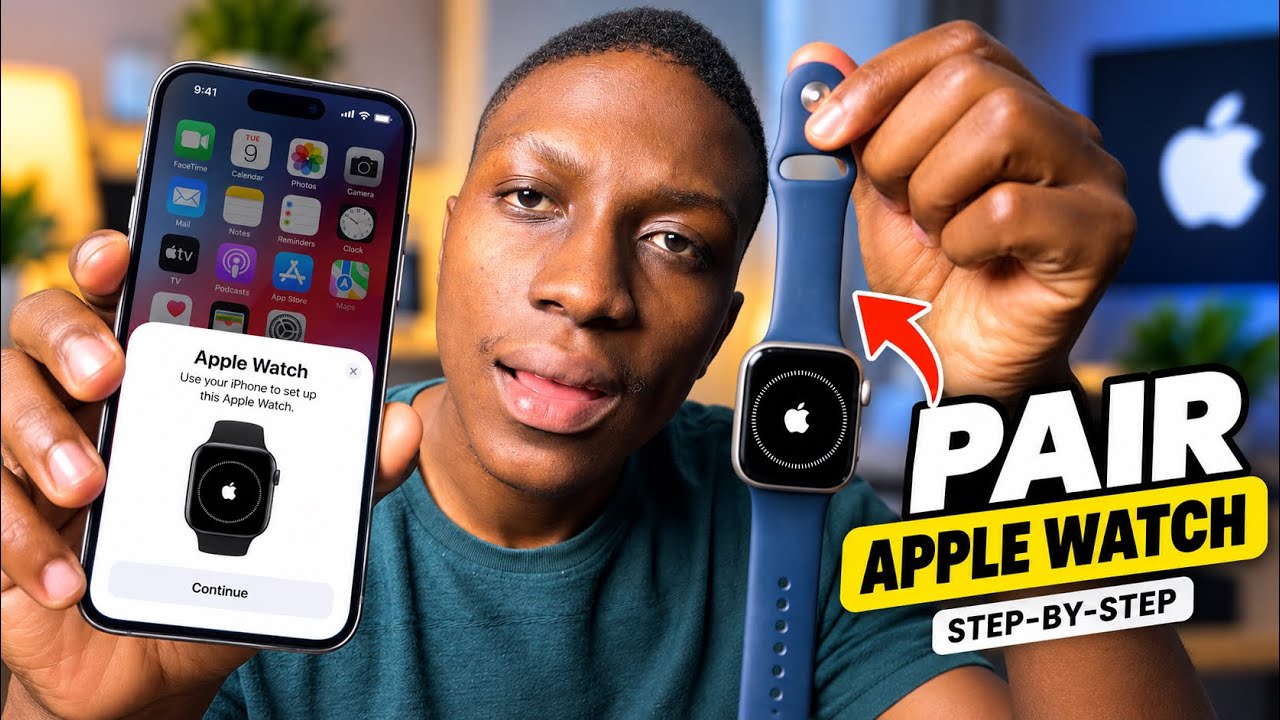
- Wait for the "Use your iPhone to set up this Apple Watch" screen to appear.
- Select your language and region if prompted.
Step 2: Bring Your Watch Close to Your iPhone
- Unlock your iPhone and hold it near your Apple Watch.
- A pairing prompt will appear on your iPhone screen: "Use your iPhone to set up your Apple Watch."
- Tap Continue.
If the prompt doesn't appear automatically, open the Watch app on your iPhone manually and tap Start Pairing, then follow the on-screen instructions.
Step 3: Align and Scan
- Your iPhone will open the camera to scan an animation displayed on your Apple Watch screen.
- Hold your iPhone over the Watch so the pattern fills the viewfinder on your phone.
- Wait a few seconds — pairing happens automatically once the scan is recognized.
If the camera scan doesn't work, tap Pair Apple Watch Manually on your iPhone and enter the 6-digit code shown on your Watch screen.
Step 4: Set Up as New or Restore from Backup
Once paired, you'll choose how to configure your Watch:
- Set Up as New Apple Watch — choose this if it's your first Watch or you want a clean start.
- Restore from Backup — choose this if you're replacing an old Watch or re-pairing after a reset. Your apps, settings, and watch face will be restored from your most recent iCloud backup.
Step 5: Sign In and Configure Settings
Follow the on-screen prompts on your iPhone to complete setup:
- Sign in with your Apple ID when prompted.
- Agree to the Terms and Conditions.
- Create a passcode for your Watch — required for Apple Pay, unlocking without your iPhone nearby, and protecting your data.
- Choose whether to enable Location Services, Siri, and Route Tracking for workouts.
- Set up Apple Pay if you want contactless payments on your wrist.
- Choose which apps to install — you can install all available apps or pick specific ones.
Step 6: Wait for Sync to Complete
After setup, your Apple Watch will sync with your iPhone. You'll see a progress ring on both devices. This can take anywhere from a few minutes to 30+ minutes depending on how much data is being transferred — especially if you're restoring from a backup with many apps and watch faces.
Keep your iPhone and Watch close together during this process. Don't restart either device until the sync completes and you see "Your Apple Watch is ready" on your iPhone.
Pairing an Apple Watch You Already Own
If you're moving your existing Apple Watch to a new iPhone:
- On your old iPhone, open the Watch app → My Watch → [Your Watch] → Unpair Apple Watch. This creates a fresh backup.
- Set up your new iPhone and sign in with the same Apple ID.
- Turn on your Apple Watch and hold it near the new iPhone.
- When prompted, choose Restore from Backup and select your most recent Watch backup.
Common Pairing Problems and Fixes
- Pairing prompt never appears: Open the Watch app manually and tap Start Pairing. Make sure Bluetooth is on and your iPhone isn't in Airplane Mode.
- Camera scan fails: Tap "Pair Apple Watch Manually" and enter the 6-digit code from your Watch screen.
- "Unable to check for update" error: Connect your iPhone to Wi-Fi and make sure it has enough storage for the watchOS update that may be required during setup.
- Watch stuck on pairing screen: Force restart your Watch by holding the Side button and Digital Crown together until the Apple logo appears, then try pairing again.
- iPhone says Watch is not compatible: Update your iPhone to the latest iOS version — newer Apple Watches require recent iOS versions to pair.
- Activation Lock appears: If the Watch was previously linked to someone else's Apple ID, you'll need their Apple ID credentials to remove Activation Lock before you can pair it.
Quick Summary
- ✅ Turn on your Apple Watch and hold it near your unlocked iPhone.
- ✅ Tap Continue on the pairing prompt (or open the Watch app manually).
- ✅ Scan the animation on your Watch with your iPhone camera.
- ✅ Choose Set Up as New or Restore from Backup.
- ✅ Sign in with Apple ID, set a passcode, and configure your preferences.
- ✅ Wait for sync to finish — keep both devices close together.
Once setup is complete, your Apple Watch is ready to track workouts, show notifications, run apps, and everything else — all synced seamlessly with your iPhone.