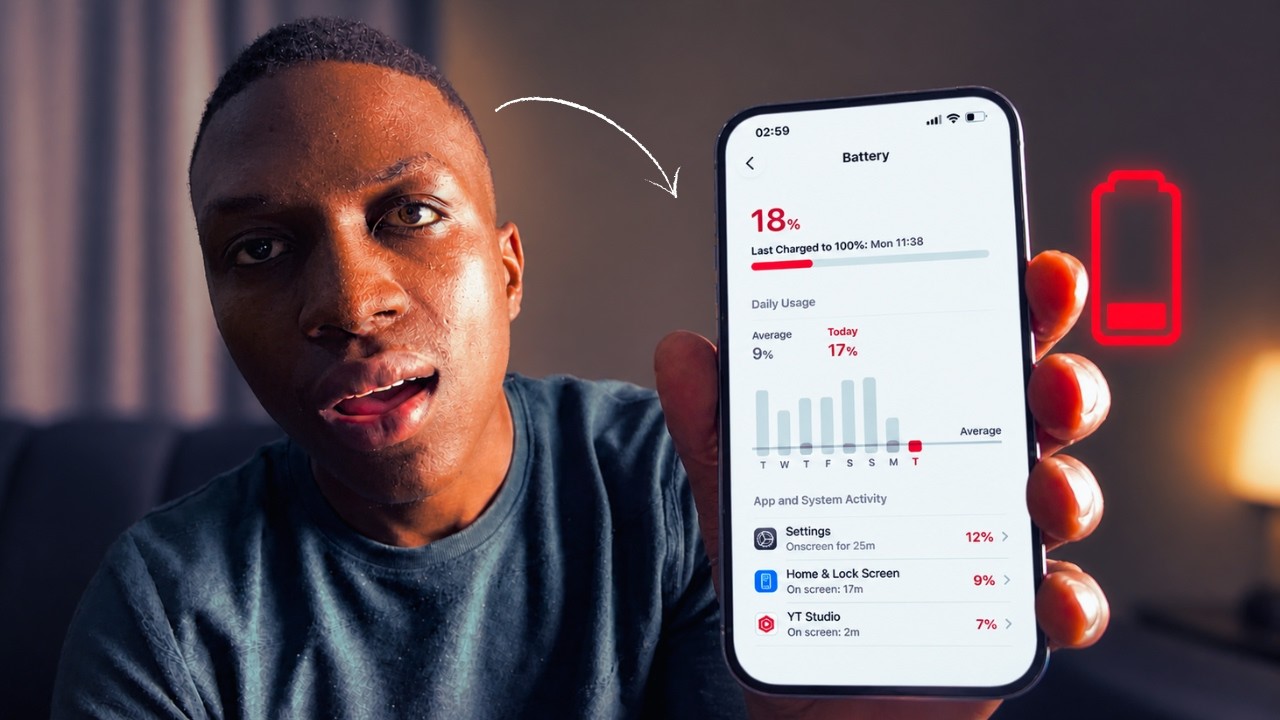

A rapidly draining iPhone battery is one of the most frustrating problems to deal with. Before you rush to replace your battery, try these fixes — most users find their battery life improves dramatically after following them.
1. Check Battery Health
Go to Settings > Battery > Battery Health & Charging. If your maximum capacity is below 80%, the battery has degraded significantly and may need replacement. If it is above 80%, the problem is likely software-related and can be fixed.
2. Identify Which Apps Are Draining the Battery
Go to Settings > Battery and scroll down to see battery usage by app. Look for any app consuming a disproportionately high percentage. If a rarely used app is near the top, force-close it or restrict its background activity.
3. Disable Background App Refresh
Apps running in the background continuously consume power. Go to Settings > General > Background App Refresh and turn it off entirely, or disable it for individual apps you do not need to refresh in the background.
4. Turn Off Location Services for Unnecessary Apps
GPS is one of the biggest battery drains. Go to Settings > Privacy & Security > Location Services. Set apps to While Using or Never unless they genuinely need continuous location access. Watch for apps marked with a solid purple arrow — these are actively using your location.
5. Reduce Screen Brightness and Enable Auto-Brightness
The display is often the largest single power consumer. Swipe down to open Control Centre and lower brightness manually, or go to Settings > Accessibility > Display & Text Size and enable Auto-Brightness so the screen adjusts automatically to ambient light.
6. Disable Always-On Features
Turn off features you do not use regularly. Go to Settings and disable:
- AirDrop — set to Contacts Only or Receiving Off when not in use.
- Bluetooth — turn off if you are not using wireless accessories.
- Wi-Fi Assist (Settings > Mobile Data > Wi-Fi Assist) — prevents constant switching between Wi-Fi and cellular.
- Push email — change to Fetch in Settings > Mail > Accounts > Fetch New Data.
7. Enable Low Power Mode
When your battery is critical, go to Settings > Battery and enable Low Power Mode. This reduces background activity, mail fetching, and visual effects to extend battery life until you can charge. You can also add a Low Power Mode toggle to Control Centre for quick access.
8. Update iOS
Apple frequently releases iOS updates that include battery optimization improvements. Go to Settings > General > Software Update and install any available updates. A known iOS bug causing abnormal battery drain is often patched in the next point release.
9. Reset All Settings
If none of the above helps, a corrupted configuration can cause excessive drain. Go to Settings > General > Transfer or Reset iPhone > Reset > Reset All Settings. This resets preferences without deleting your data, and often resolves persistent battery drain issues.
When to Replace the Battery
If your battery health is below 80%, the phone shuts down unexpectedly, or performance is being throttled, it is time to replace the battery. You can do this through Apple Support, an Apple Store, or an Apple Authorized Service Provider.
Video Guide
Watch the full step-by-step tutorial below: