
![How to Transfer WhatsApp Chats [2026 General Guide]](/hacks.webp)
Switching from an iPhone to a new device like an Android 16 or just upgrading to the latest iPhone used to be a headache. In 2026, we have several distinct ways to handle this depending on your setup.
Method 1: The Official WhatsApp QR Transfer (iPhone to Android)
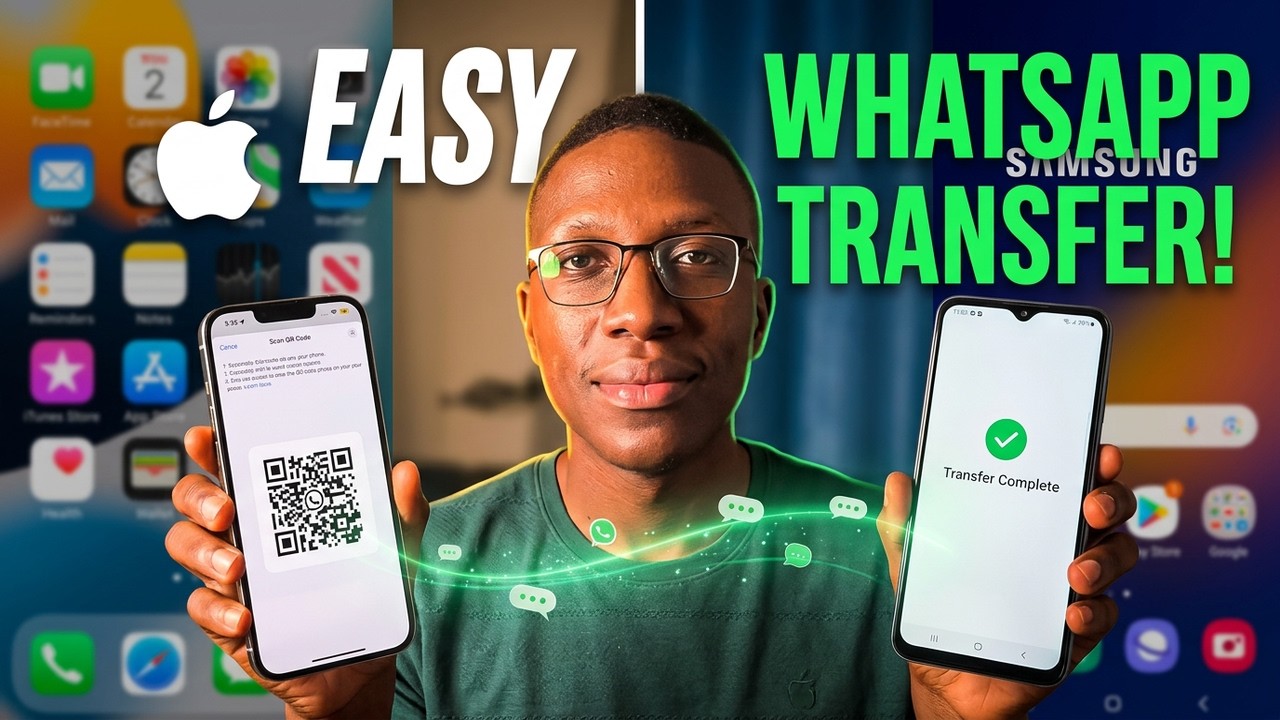
This is the most reliable method for personal accounts. On your iPhone, go to Settings > Chats > Transfer Chats to Android. You will need to have WhatsApp installed on your new Android device with the same phone number. Simply scan the QR code displayed on your Android screen using your iPhone's camera. This moves your full history, including photos and voice notes, over an encrypted local connection.
Method 2: iPhone to iPhone Transfer
Upgrading to a new iPhone? The process is seamless using iCloud or the direct device-to-device transfer feature. It ensures everything, including your chats, media, and settings, are safely moved to your new device. Just make sure both iPhones are on the latest iOS and connected to power.

Method 3: Samsung Smart Switch (Best for WhatsApp Business)
If you are a WhatsApp Business user, the standard QR method often fails. Instead, use a physical USB-C to Lightning (or USB-C to USB-C) cable. Open Smart Switch on your Samsung device, connect the iPhone, and select "Apps" for transfer. This method can often bypass the limitations of the official app-to-app transfer and is highly recommended for professional users in ICT environments.
Method 4: Dual Accounts & Companion Mode
Sometimes you don't want to move your data—you just want to access it on two phones. Android 16's Dual Messenger allows you to clone WhatsApp to run two different numbers on one device. Alternatively, you can use Linked Devices to "mirror" your iPhone chats onto your Android phone, perfect if you're using the Android as a secondary tech-tester device.
For more deep dives into Android 16 and iOS 26 features, subscribe to our YouTube channel. We break down complex tech so you don't have to.